dev-ops-challenges
Configure Jenkins Job for Package Installation
Technical Overview
Automating package installations across target infrastructure nodes is a core capability of Continuous Integration and Continuous Deployment (CI/CD) pipelines. Jenkins enables infrastructure engineers to execute remote maintenance and deployment tasks securely via parameterized Freestyle Projects.
By configuring parameterized jobs, users can specify dynamic variables (such as package names or application versions) at runtime without editing the job’s underlying build script configuration.
This implementation involves:
- Parameterized Job Setup: Exposing a
PACKAGEstring parameter in the Jenkins user interface. - Non-Interactive Remote Execution: Using standard SSH (
ssh -o StrictHostKeyChecking=no) to open an automated remote shell session on the Storage Server (ststor01). - Privileged Execution: Running system package manager tools (
sudo dnf install -y $PACKAGE) on the target host non-interactively.
graph TD
    subgraph ClientLayer ["Client / Operator"]
        User["DevOps Engineer"]
    end

    subgraph JenkinsController ["Jenkins Controller"]
        UI["Jenkins Web Interface"]
        JobConfig["Freestyle Job: install-packages"]
        EnvVar["Environment Variable: $PACKAGE"]
        BuildStep["Execute Shell Build Step"]
    end

    subgraph TargetHost ["Storage Server (ststor01)"]
        SSHDaemon["SSH Daemon (User: natasha)"]
        Sudoers["Sudoers Policy (Passwordless)"]
        DNF["DNF Package Manager"]
    end

    User -->|1. Select 'Build with Parameters'| UI
    UI -->|2. Supply PACKAGE name e.g. vim-enhanced| JobConfig
    JobConfig -->|3. Populate Variable| EnvVar
    EnvVar -->|4. Execute Command| BuildStep
    BuildStep -->|5. SSH Connection| SSHDaemon
    SSHDaemon -->|6. Escalate Privileges| Sudoers
    Sudoers -->|7. Install Package| DNF
Parameterization & Remote Execution Deep Dive
1. Parameterized Build Mechanisms in Jenkins
When the “This project is parameterized” option is enabled in a Jenkins Freestyle project:
- Jenkins converts all configured build parameters into standard process environment variables during execution.
- A parameter named
PACKAGEbecomes available inside the build container/shell execution context as$PACKAGE. - This decouples execution logic from variable values, making jobs reusable across different software packages and server target fleets.
2. Passwordless & Non-Interactive SSH Operations
Remote execution requires non-interactive shell commands:
- Disabling Host Key Prompt (
StrictHostKeyChecking=no): Prevents the SSH client from hanging indefinitely waiting for an interactive user confirmation when encountering a new host fingerprint. - Remote Command Wrapper (
ssh user@host "command"): Passes the remote command string directly to the target server’s SSH daemon for execution, returning standard output and error streams back to Jenkins. - Automatic Sudo Access: The remote user (
natasha) must have non-interactive passwordlesssudoprivileges configured in/etc/sudoersonststor01(natasha ALL=(ALL) NOPASSWD: ALL).
Infrastructure & Configuration Requirements
- Jenkins Controller Access: Web Browser (HTTP) on port
8080 - Admin Credentials:
admin/Adm!n321
Target Node Specifications
- Storage Server Hostname:
ststor01 - SSH Remote User:
natasha - Target Operating System: Red Hat Enterprise Linux / CentOS Stream / Fedora (DNF-based)
Jenkins Job Specifications
- Job Type: Freestyle Project
- Job Name:
install-packages - Parameter Type: String Parameter
- Parameter Name:
PACKAGE - Parameter Description:
package to install - Build Step Type: Execute shell
- Execution Command:
ssh -o StrictHostKeyChecking=no natasha@ststor01 "sudo dnf install -y $PACKAGE"
Step-by-Step Walkthrough
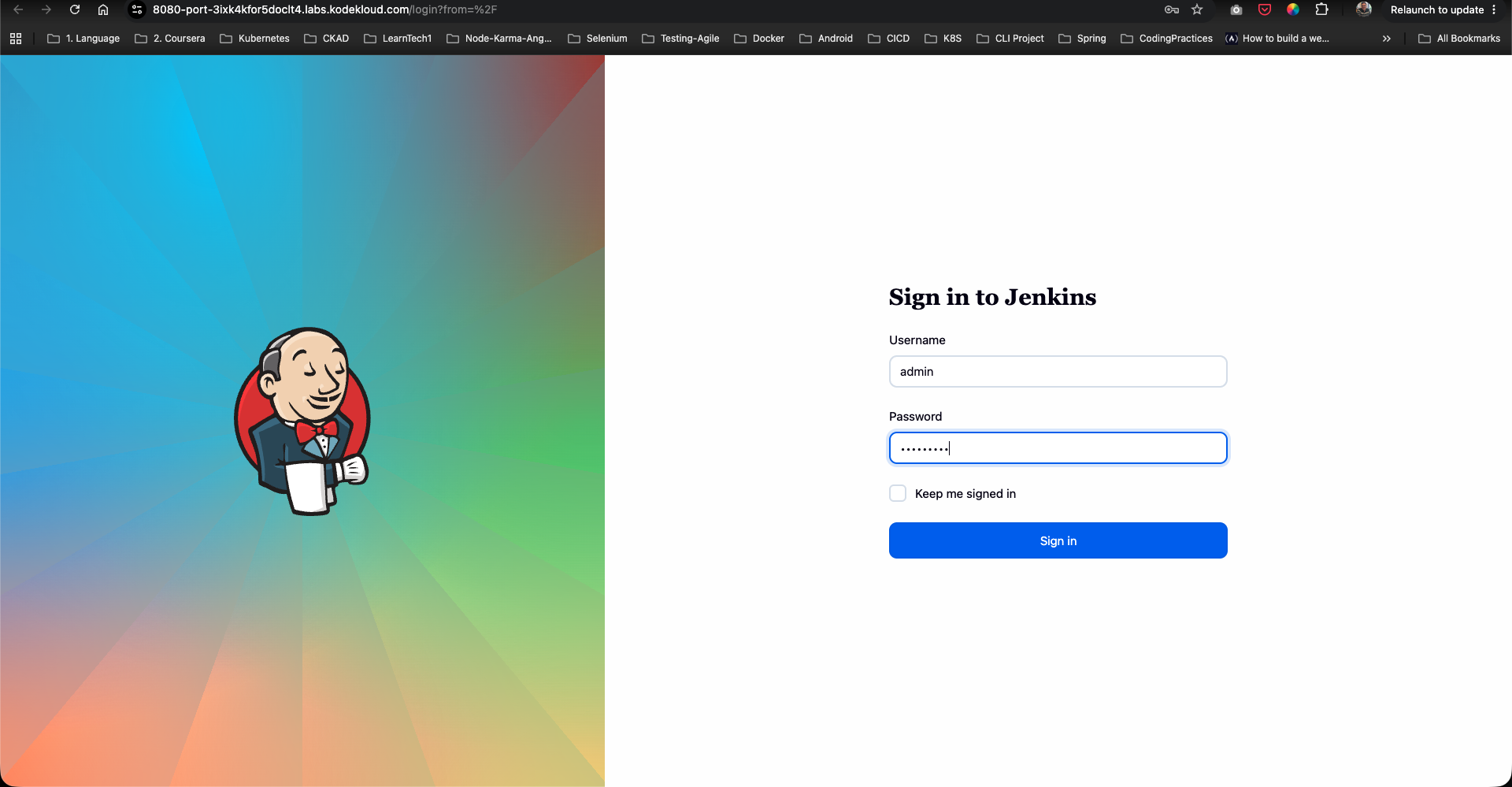
Step 1: Log in to the Jenkins Console
- Open your web browser and navigate to the Jenkins login page.
- Sign in using the administrative credentials:
- Username:
admin - Password:
Adm!n321
- Username:
Step 2: Create the install-packages Freestyle Job
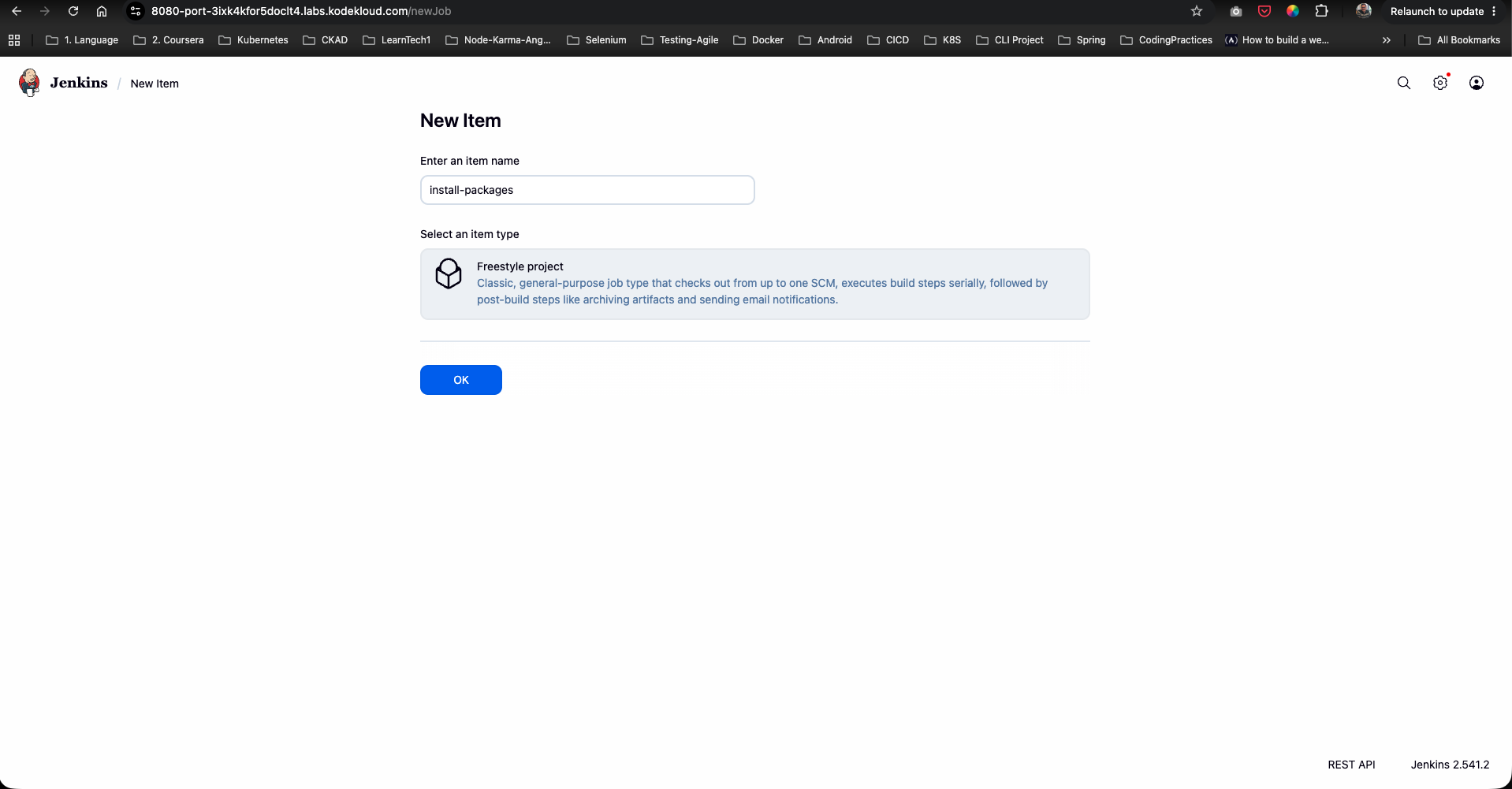
- From the Jenkins dashboard sidebar, click New Item.
- Enter the item name:
install-packages. - Select Freestyle project as the item type.
- Click OK to proceed to the configuration page.
Step 3: Configure Build Parameters
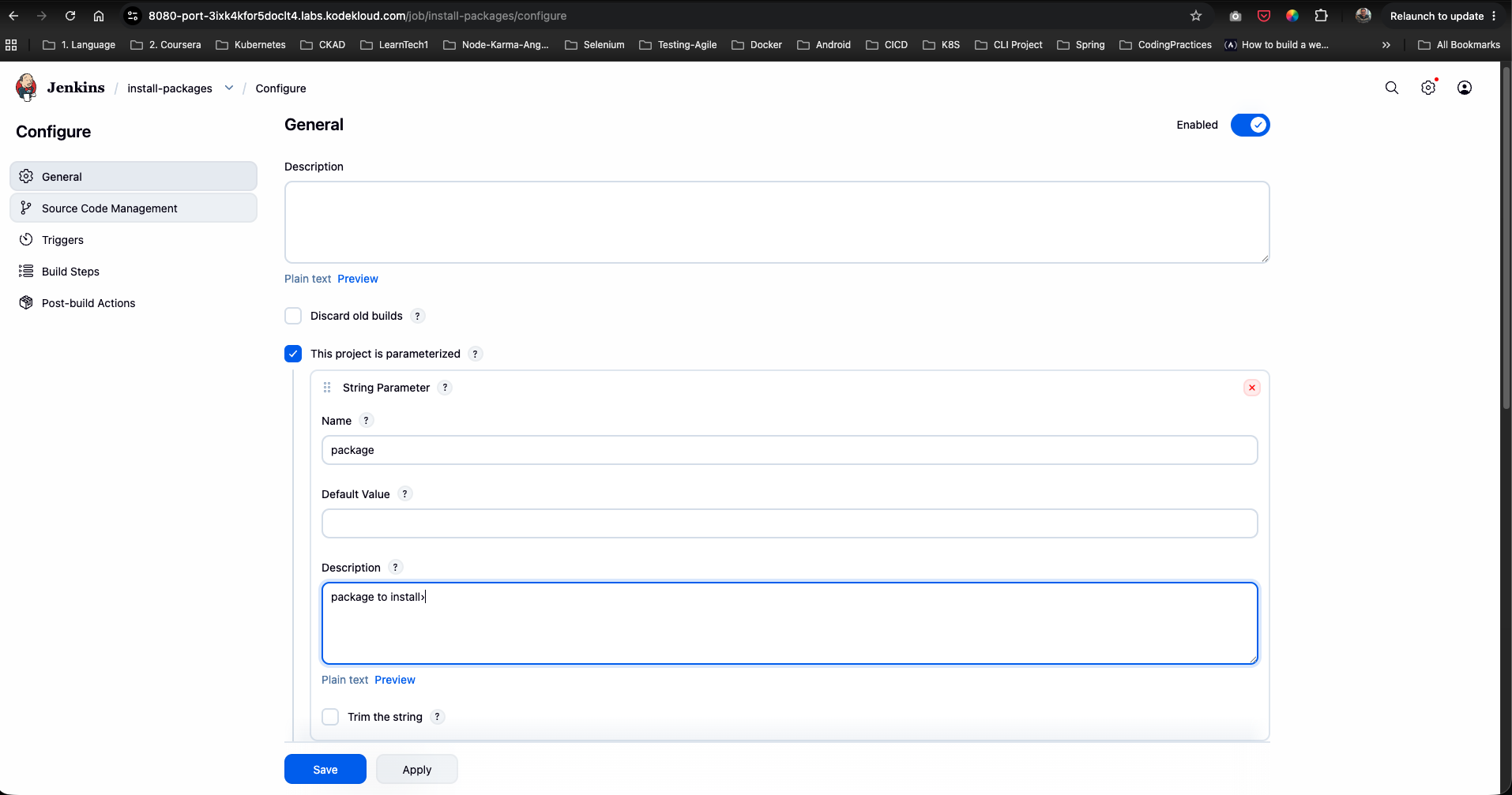
- Under the General section, check the box for This project is parameterized.
- Click Add Parameter and select String Parameter from the dropdown menu.
- Configure the parameter fields as follows:
- Name:
PACKAGE - Default Value: (Leave empty or set default)
- Description:
package to install
- Name:
Step 4: Configure Remote Shell Execution Build Step
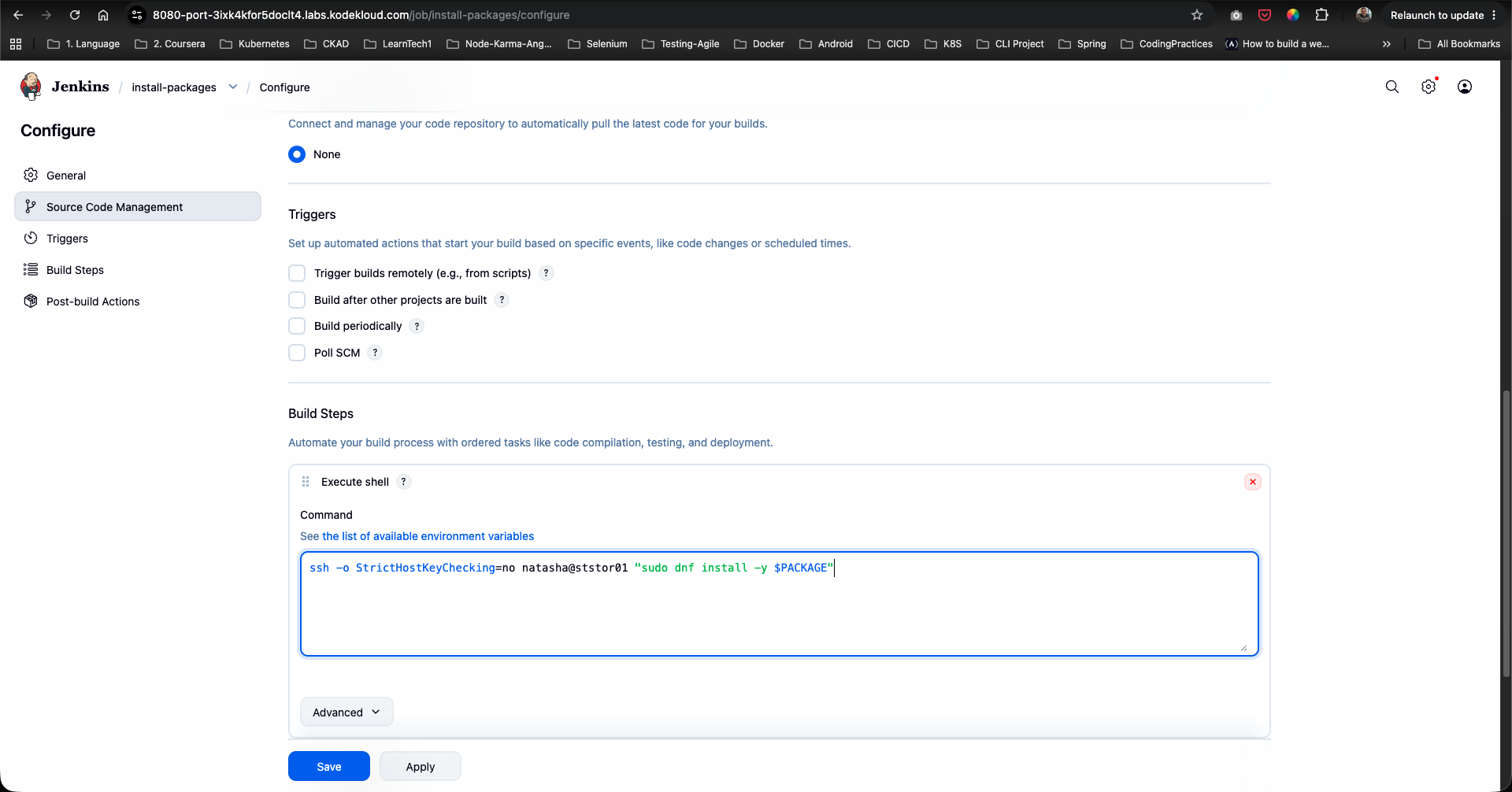
- Scroll down to the Build Steps section.
- Click Add build step and select Execute shell.
- In the Command text area, enter the remote SSH package installation command:
ssh -o StrictHostKeyChecking=no natasha@ststor01 "sudo dnf install -y $PACKAGE" - Click Save to persist the job configuration.
Step 5: Execute Parameterized Job Build
- From the left sidebar of the
install-packagesproject page, click Build with Parameters. - Under the PACKAGE field, enter the target package name to install (e.g.,
vim-enhanced). - Click the green Build button.
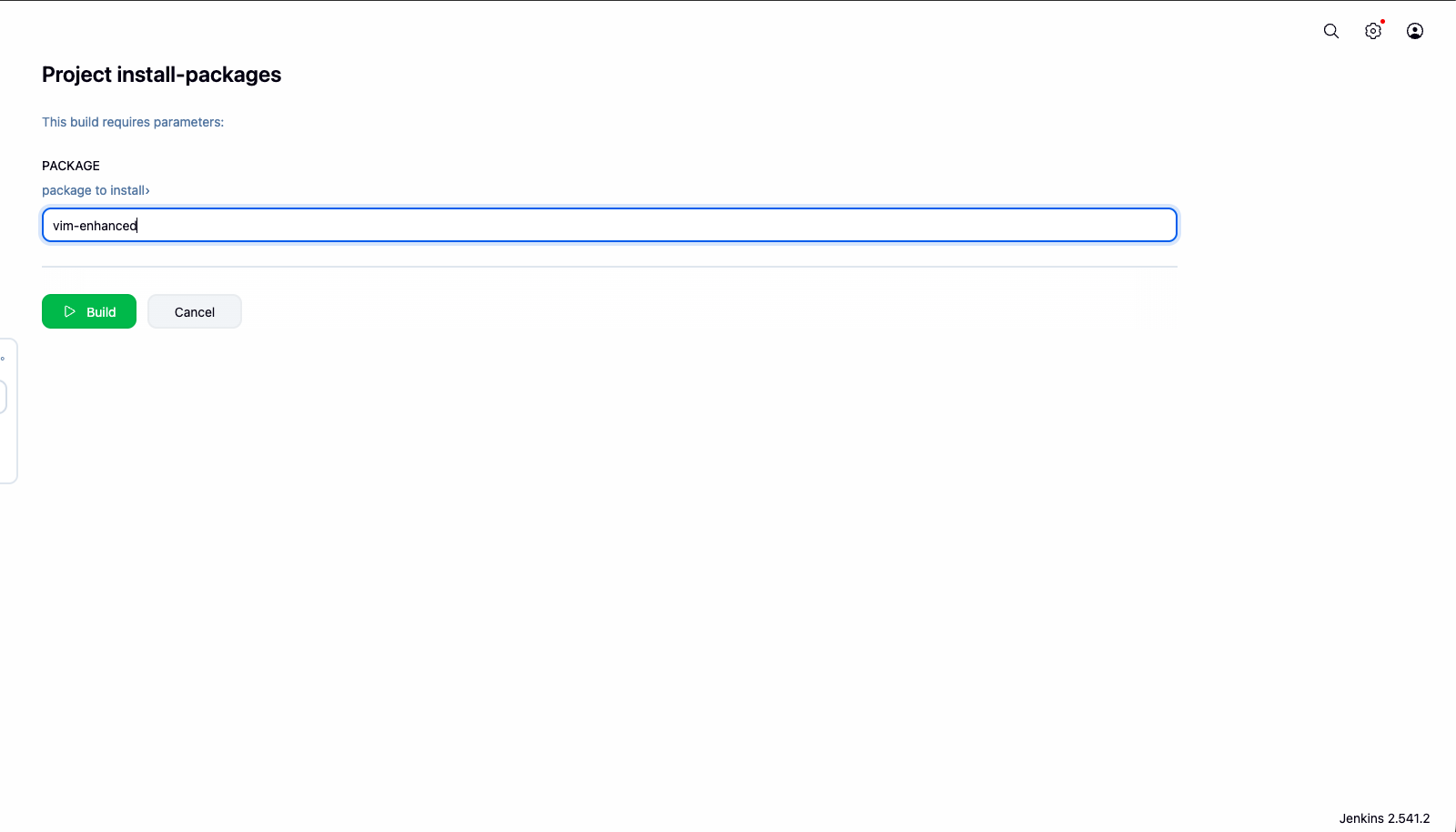
Step 6: Monitor Execution Status
- Observe the Build History panel on the left sidebar.
- Build
#1will start executing:
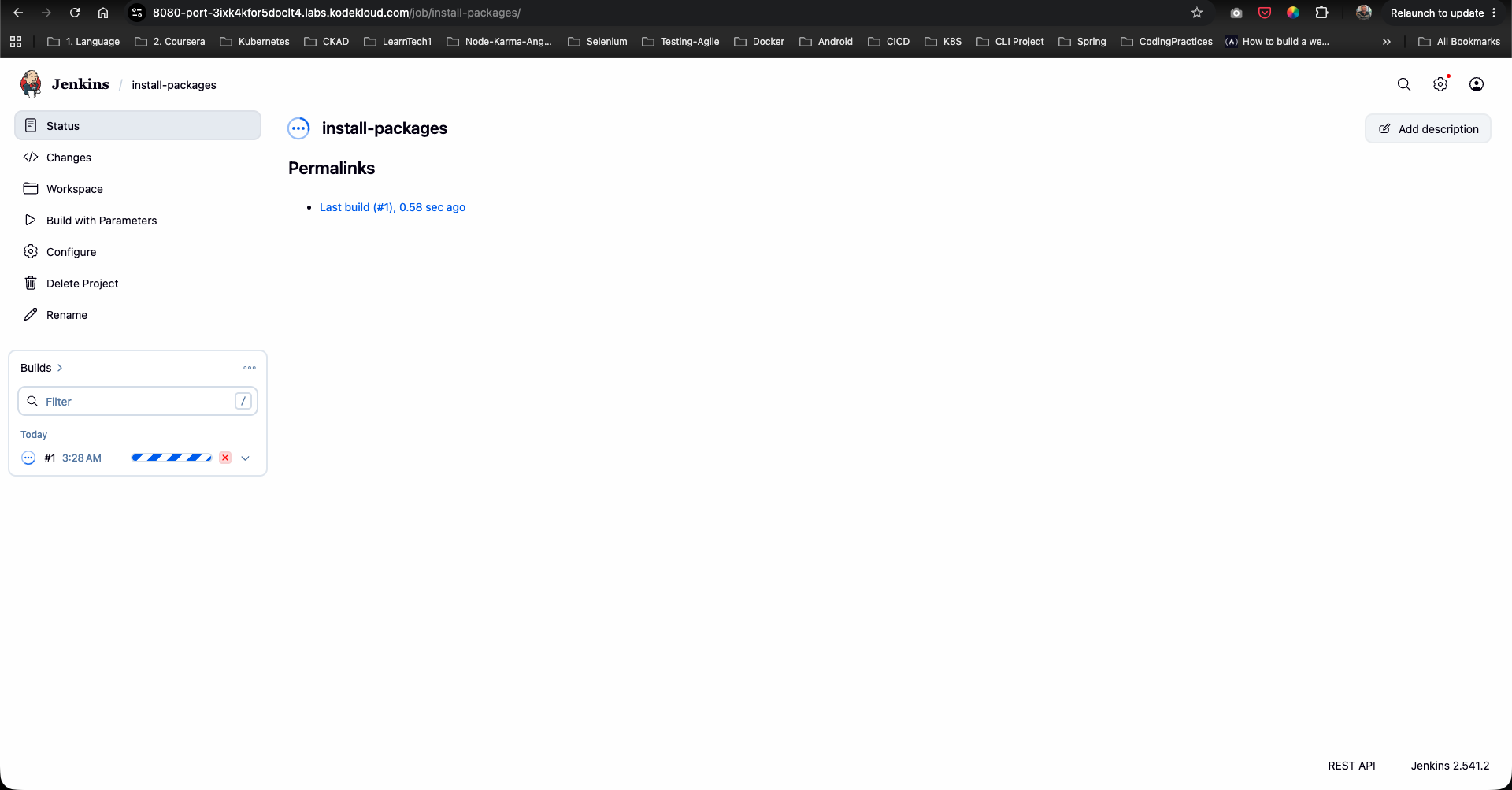
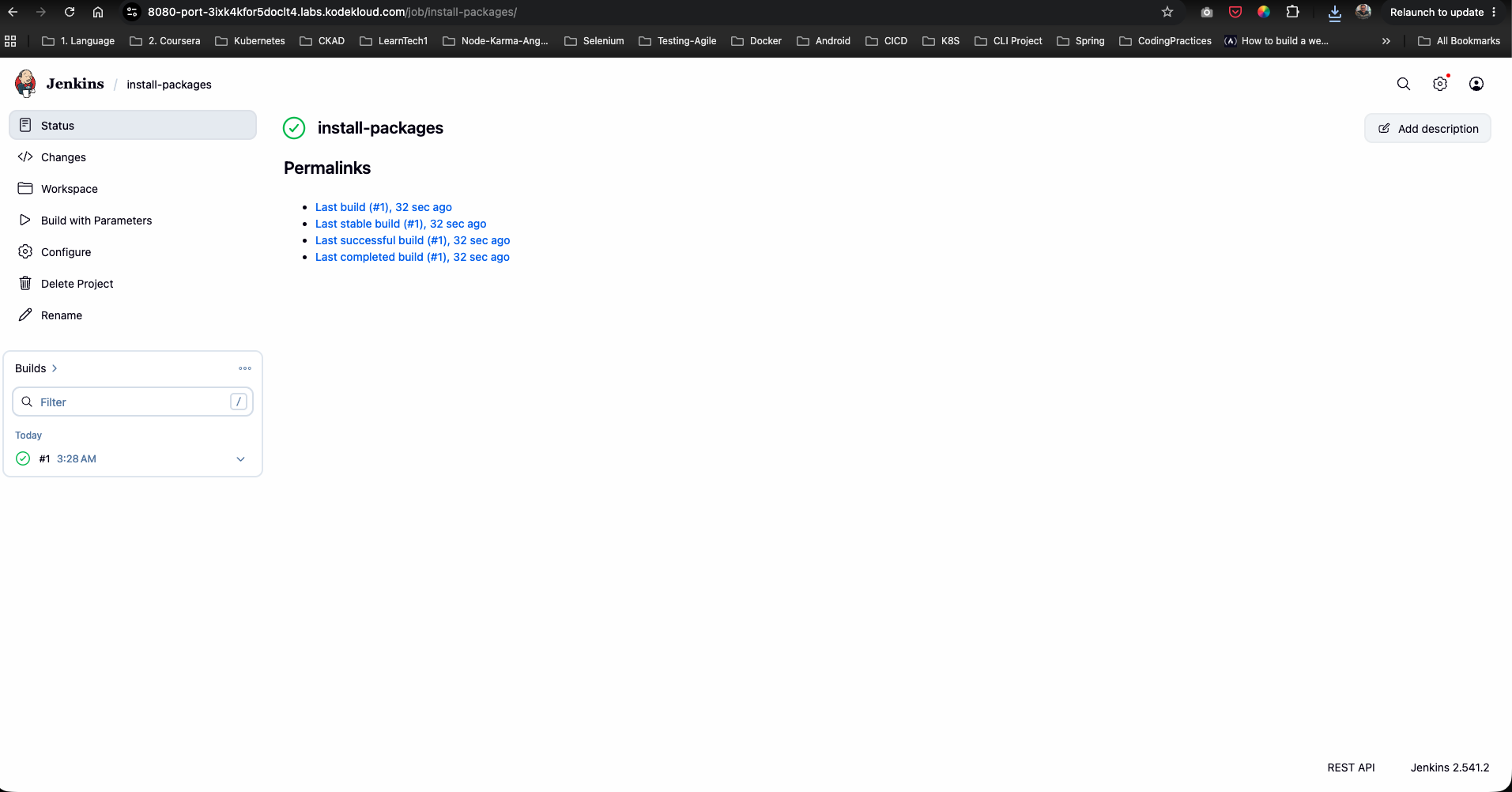
- Once the remote installation command completes, a green checkmark will appear indicating a successful build (
SUCCESS):
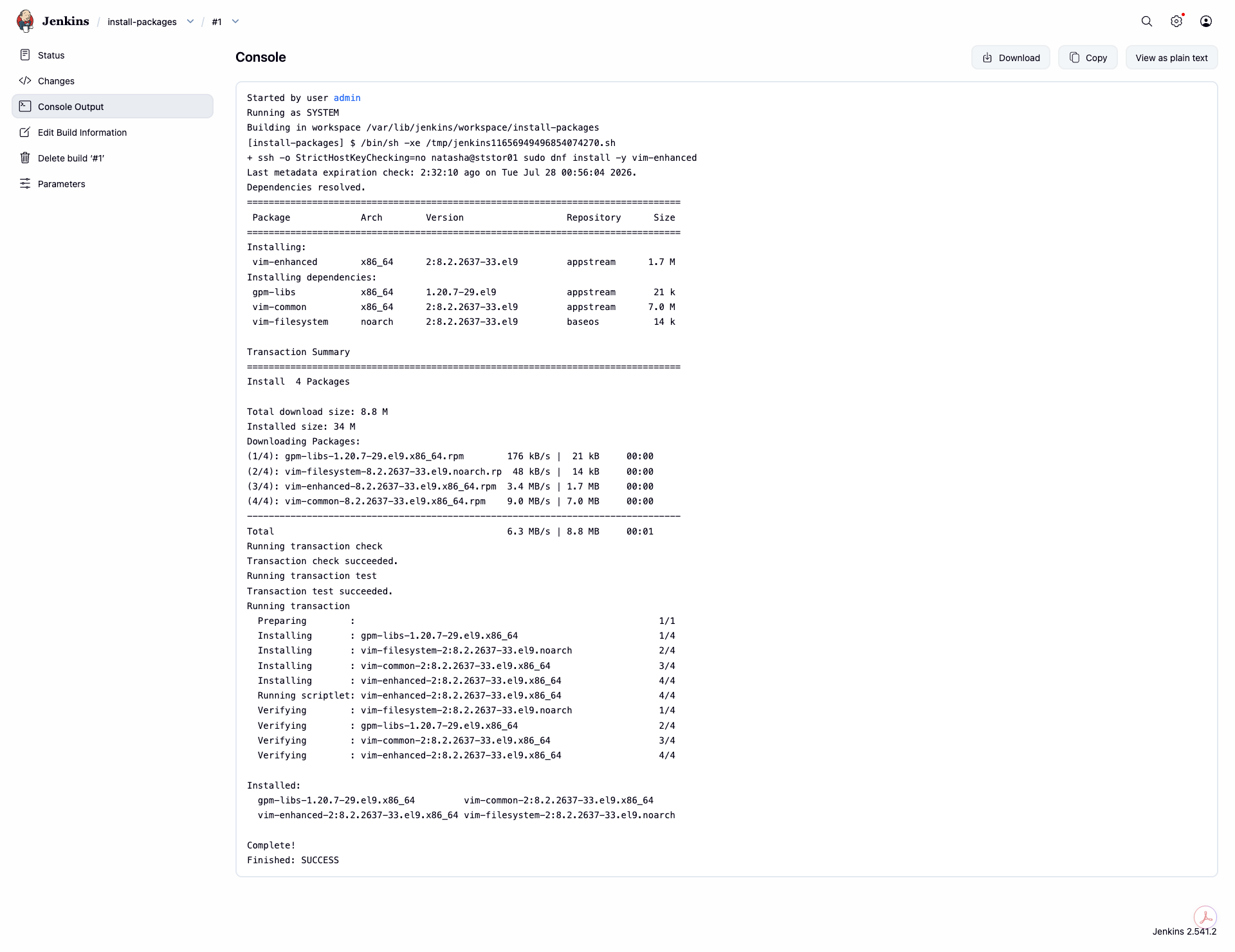
Step 7: Inspect Console Output & Verify Installation
- Click on build
#1and select Console Output from the left menu. - Verify that:
- The process launched
/bin/shexecuting the SSH command. - SSH connected to host
ststor01as usernatasha. - DNF downloaded and installed
vim-enhancedalong with its dependencies (gpm-libs,vim-common,vim-filesystem). - The command finished with status
Finished: SUCCESS.
- The process launched
The Jenkins package installation job is now fully configured and verified!