dev-ops-challenges
Configure Jenkins Parameterized Job
Technical Overview
Continuous Integration pipelines frequently require dynamic inputs—such as target deployment environments, release tags, or feature flags—without modifying the job’s underlying script configuration. Jenkins supports this through Parameterized Builds, allowing users to prompt operators for custom inputs at runtime.
When a build is parameterized:
- Input Collection: Jenkins prompts the user with customized input UI controls (text boxes, drop-down menus, checkboxes) before scheduling the build.
- Environment Variable Injection: Jenkins injects each parameter key-value pair as an environment variable into the job’s execution runtime process context.
- Shell Execution: Shell build steps can dereference these parameters directly (e.g.,
$Stage,$env) to dynamically route execution logic.
graph TD
    subgraph ClientLayer ["DevOps Engineer / Operator"]
        User["User Interface Prompt"]
    end

    subgraph JenkinsController ["Jenkins Controller"]
        JobConfig["Freestyle Project: parameterized-job"]
        StringParam["String Parameter: Stage = Build"]
        ChoiceParam["Choice Parameter: env = Staging"]
        EnvInjection["Process Environment Variables"]
        ShellStep["Execute Shell Build Step"]
    end

    subgraph ConsoleLog ["Execution Log"]
        Output["Console Output Stream"]
    end

    User -->|"1. Select Build with Parameters"| JobConfig
    JobConfig -->|"2. Supply Stage"| StringParam
    JobConfig -->|"3. Select Choice"| ChoiceParam
    StringParam -->|"4. Export Stage Parameter"| EnvInjection
    ChoiceParam -->|"5. Export env Parameter"| EnvInjection
    EnvInjection -->|"6. Execute echo commands"| ShellStep
    ShellStep -->|"7. Print Parameter Values"| Output
Parameterized Build Fundamentals Deep Dive
1. Parameter Types in Jenkins
Jenkins provides various parameter types to handle different categories of inputs:
- String Parameter: A single-line text input field. Ideal for arbitrary text strings, branch names, or version tags. Can include an optional default value.
- Choice Parameter: A drop-down selection menu defined by listing choices one per line. Ensures operators only choose from a predefined, safe list of valid values (e.g.,
Development,Staging,Production). - Boolean Parameter: A checkbox returning
trueorfalse. - Credentials Parameter: Securely passes managed secrets or tokens into build execution.
2. Environment Variable Resolution
When Jenkins launches the build subprocess (/bin/sh -xe), parameter values are exported into the shell environment:
- In Unix/Linux environments, parameter names are accessed using dollar-sign variable expansion (
$Stage,$envor${Stage},${env}). - Case sensitivity is maintained based on the exact parameter name specified in the job configuration.
Infrastructure & Configuration Requirements
- Jenkins Controller Access: Web Browser (HTTP) on port
8080 - Admin Credentials:
admin/Adm!n321
Jenkins Job Specifications
- Job Type: Freestyle Project
- Job Name:
parameterized-job
Parameter 1: String Parameter
- Name:
Stage - Default Value:
Build
Parameter 2: Choice Parameter
- Name:
env - Choices:
DevelopmentStagingProduction
Build Step Configuration
- Type: Execute shell
- Shell Script Command:
echo "stage" $Stage
echo "env" $env
Verification Execution Requirements
- Selected Choice for
env:Staging
Step-by-Step Walkthrough
Step 1: Log in to the Jenkins Console
- Open your web browser and navigate to the Jenkins login page.
- Sign in using the administrative credentials:
- Username:
admin - Password:
Adm!n321
- Username:
Step 2: Create the parameterized-job Freestyle Project
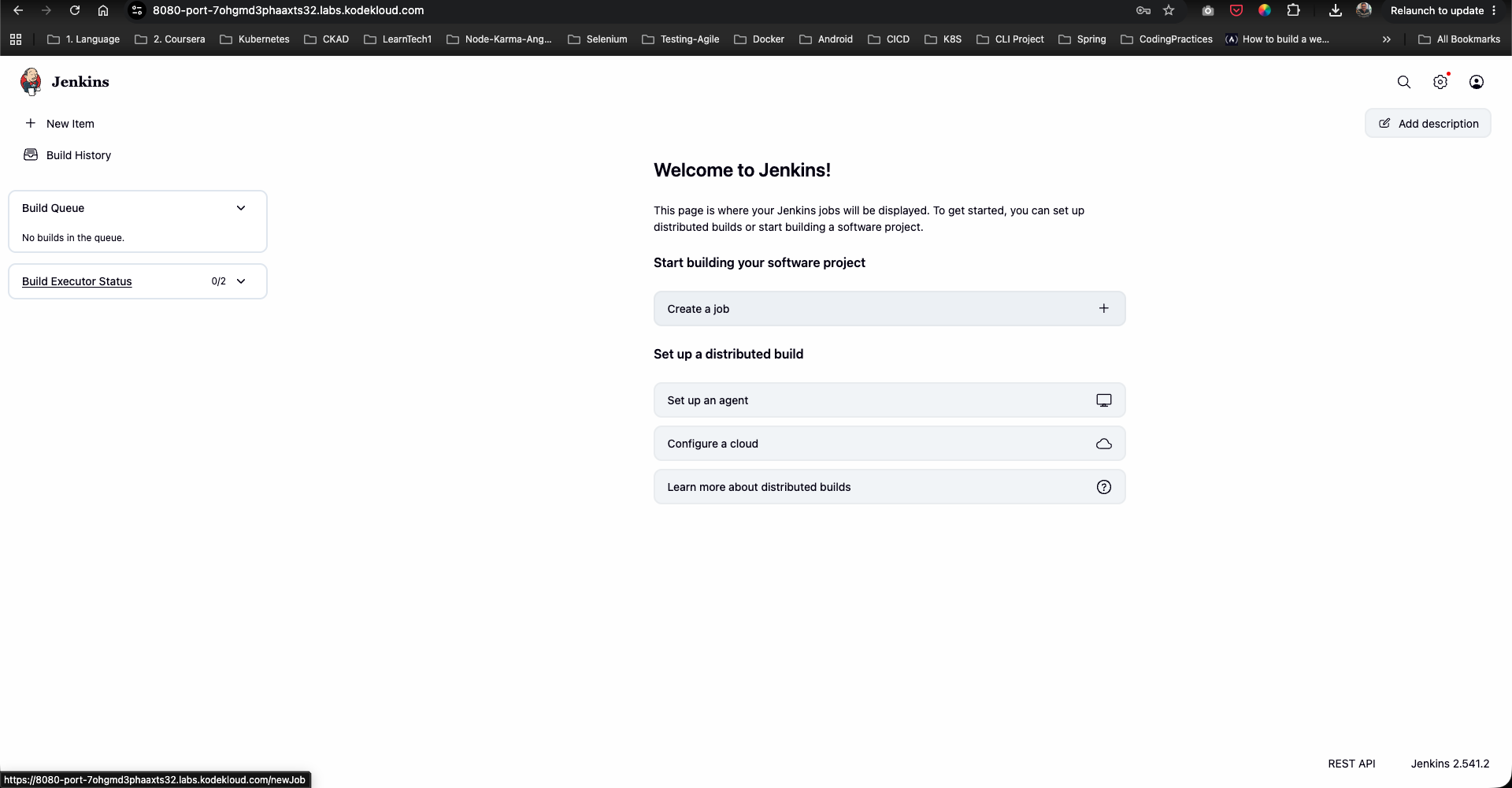
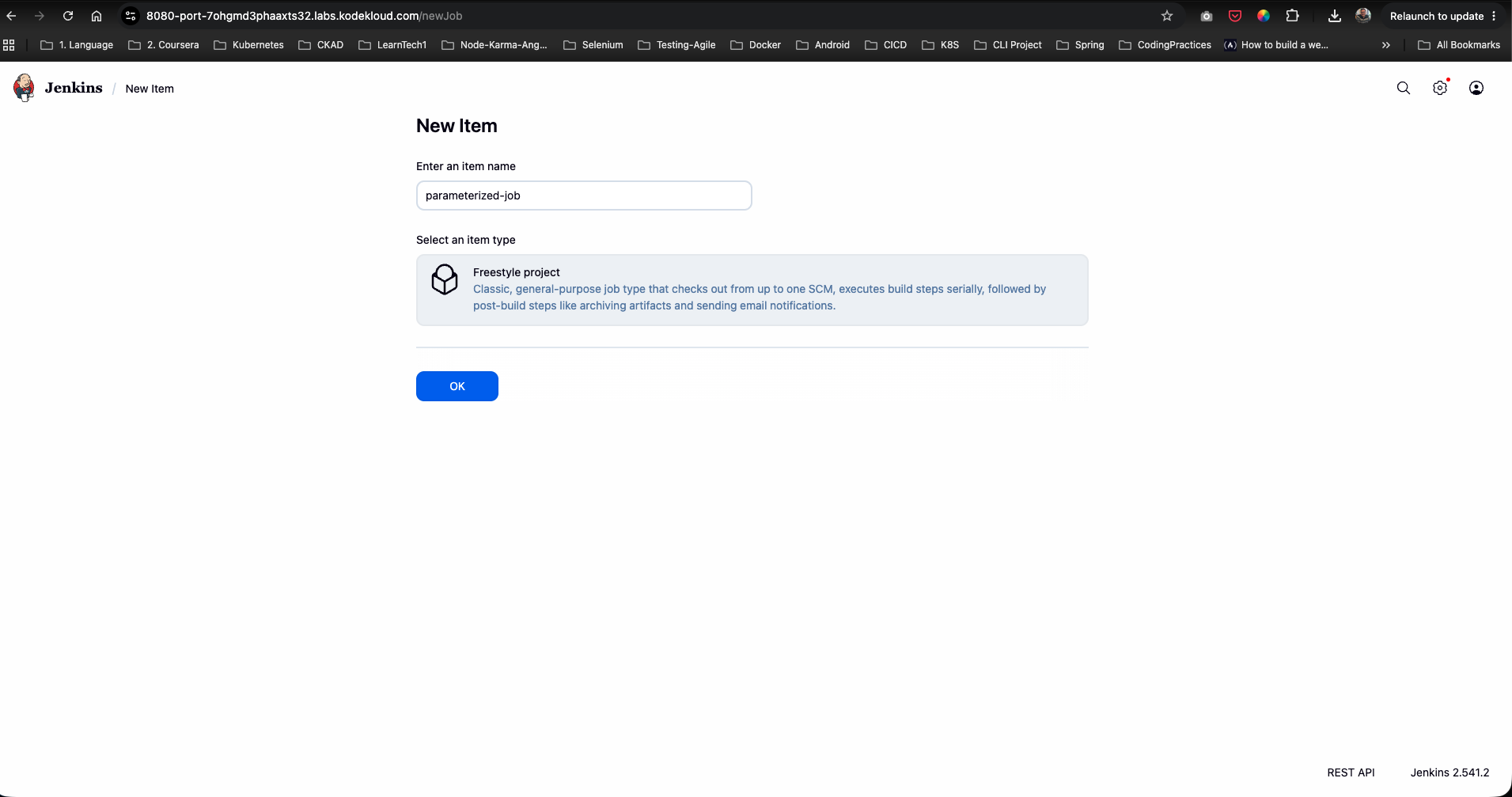
- From the left sidebar, click New Item (or click Create a job).
- Enter the item name:
parameterized-job. - Select Freestyle project.
- Click OK.
Step 3: Configure Job Parameters
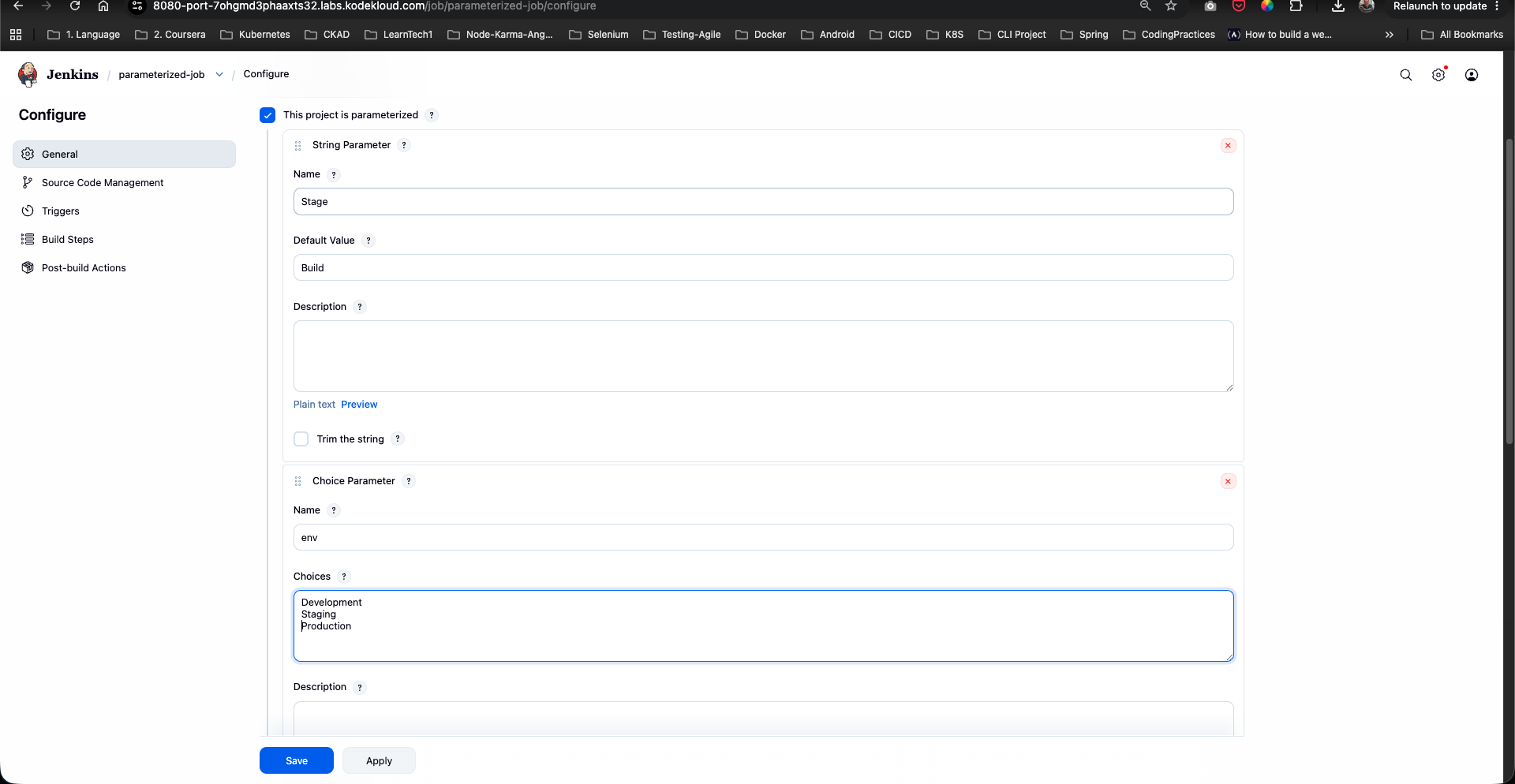
- Under the General tab, check the box for This project is parameterized.
- Click Add Parameter and choose String Parameter:
- Name:
Stage - Default Value:
Build
- Name:
- Click Add Parameter again and choose Choice Parameter:
- Name:
env - Choices: Enter the following options, each on a new line:
Development
Staging
Production
- Name:
Step 4: Configure Execute Shell Build Step
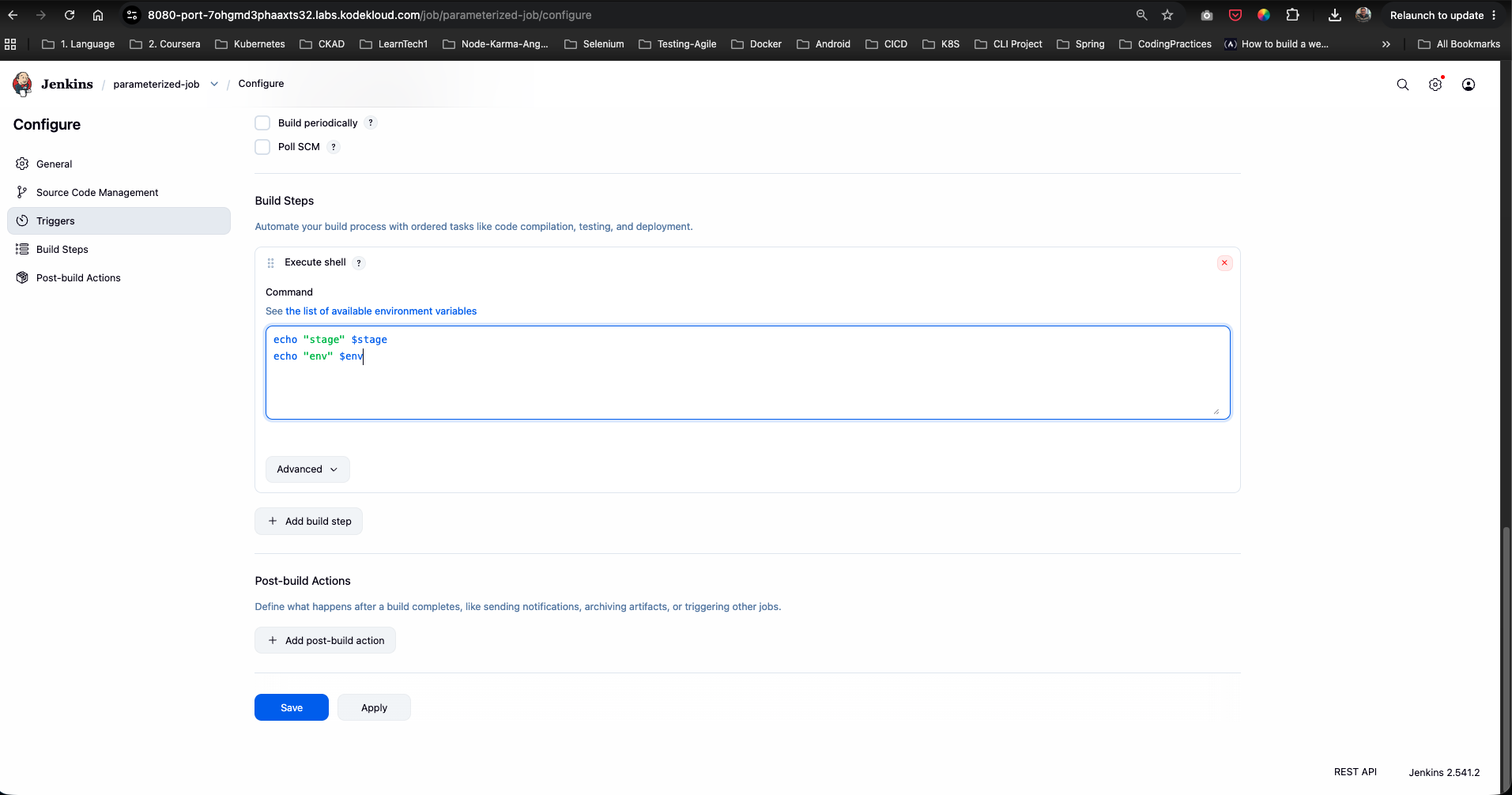
- Scroll down to the Build Steps section.
- Click Add build step and select Execute shell.
- In the Command field, enter the shell commands to print the parameter variables:
echo "stage" $Stage echo "env" $env - Click Save to persist the configuration.
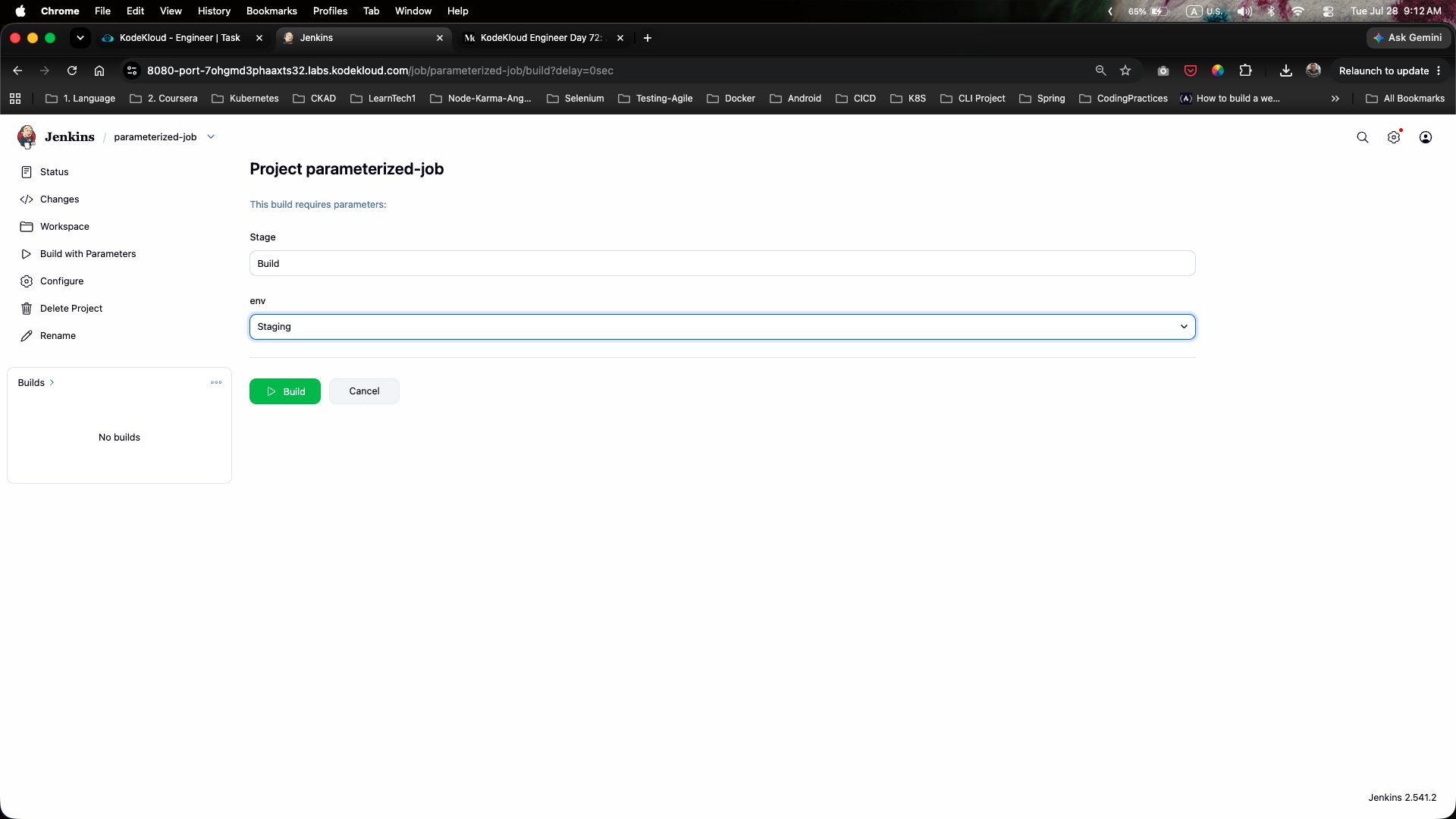
Step 5: Execute Job with Parameters
- From the sidebar of the
parameterized-jobproject page, click Build with Parameters. - Verify that Stage contains the default value
Build. - From the env drop-down menu, select
Staging. - Click the green Build button.
Step 6: Monitor Execution Status
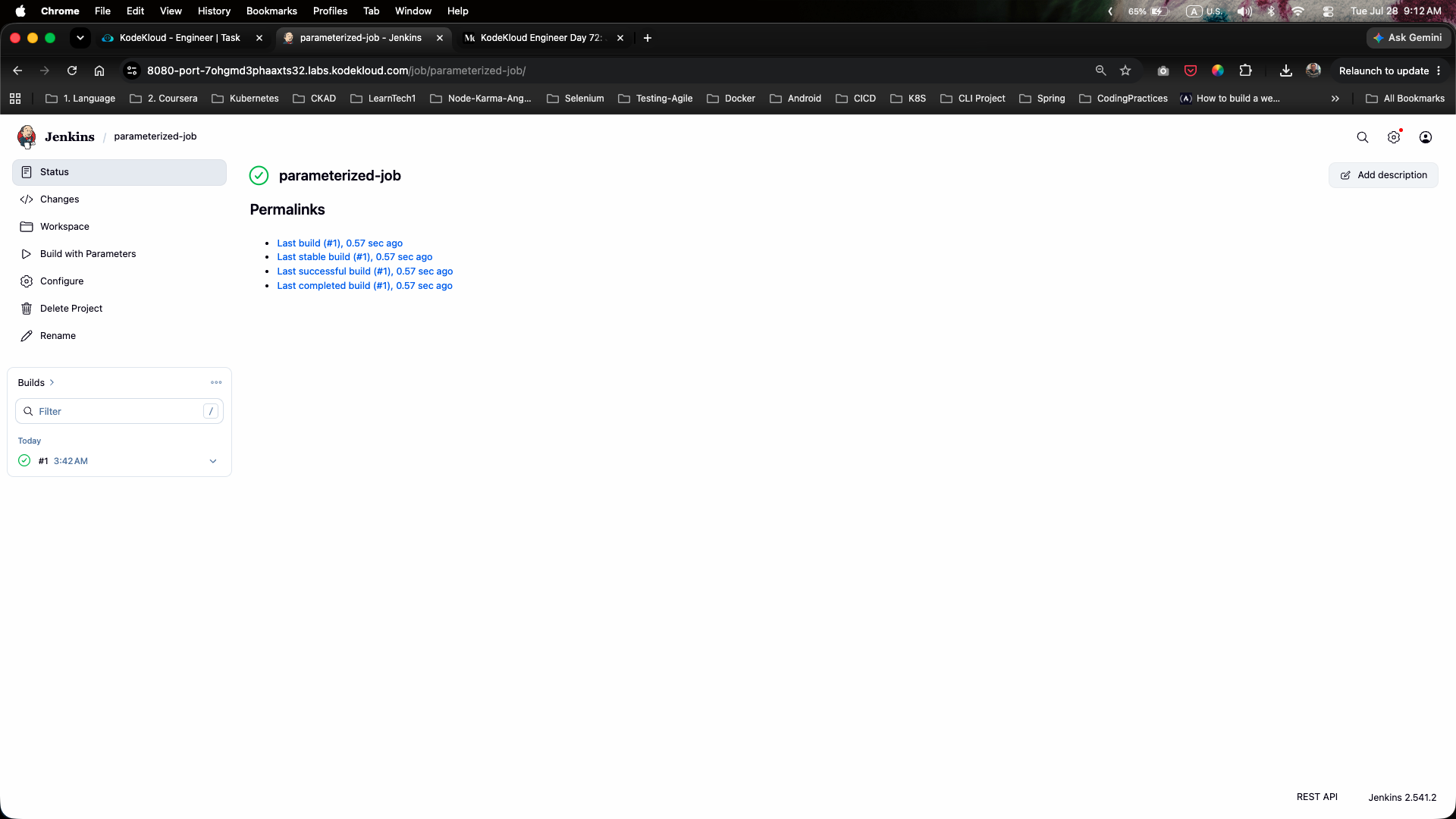
- Observe the Build History panel on the left sidebar.
- Build
#1will execute and complete successfully, marked with a green checkmark icon (SUCCESS):
Step 7: Inspect Console Output & Verify Parameters
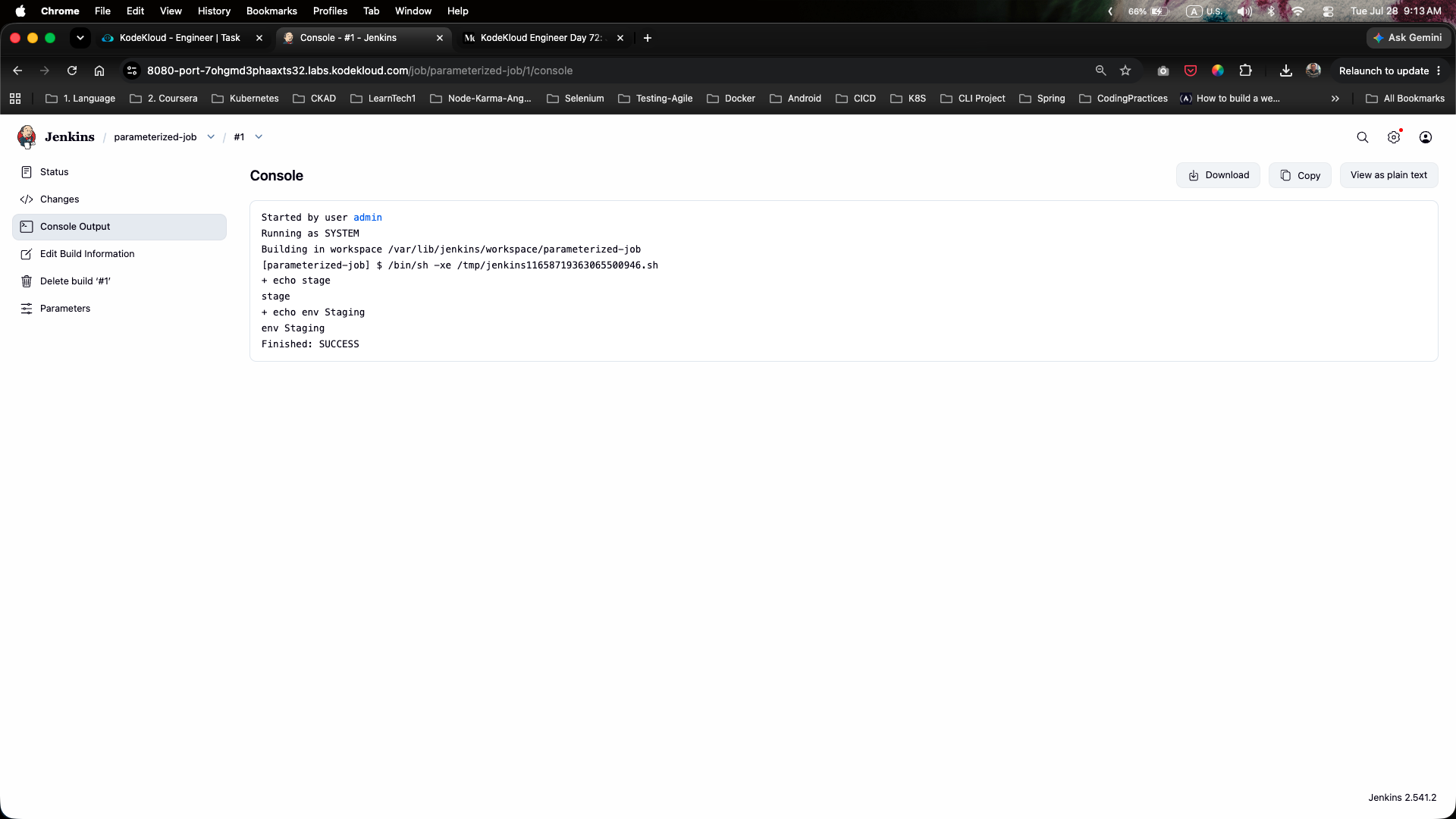
- Click on build
#1and select Console Output. - Verify the execution log:
- The process executed the generated
/bin/shscript. + echo stage Buildprintedstage Build.+ echo env Stagingprintedenv Staging.- The build finished with status
Finished: SUCCESS.
- The process executed the generated
The Jenkins parameterized job has been successfully configured and verified!