dev-ops-challenges
Configure Jenkins Job for Database Backup
Technical Overview
Database backups are a vital disaster-recovery requirement for production systems. In containerized or multi-tier infrastructure environments, database instances often run on dedicated application nodes or database servers, while long-term backups must be archived on centralized storage nodes.
This challenge configures an automated, periodic database backup pipeline using Jenkins:
- Periodic Trigger: Scheduling the build to run every 10 minutes (
*/10 * * * *). - Remote Database Extraction: Invoking
mysqldumpover an SSH connection to stream a database dump ofkodekloud_db01directly from App Server 1 (stapp01). - Dynamic Filename Generation: Formatting the SQL dump using current date resolution (
db_$(date +%F).sqle.g.db_2026-07-28.sql). - Remote Storage Transfer: Copying the backup file via
scpto Storage Server (ststor01) under/home/natasha/db_backups/. - Workspace Cleanup: Removing the local staging SQL file from the Jenkins workspace to prevent disk space exhaustion.
graph TD
    subgraph CronScheduler ["Jenkins Controller (Cron)"]
        Trigger["Build Periodically Trigger: */10 * * * *"]
        Job["Freestyle Job: database-backup"]
        Workspace["Jenkins Staging Workspace<br/>/var/lib/jenkins/workspace/database-backup"]
    end

    subgraph AppServer ["App Server 1 (stapp01)"]
        MySQL["MySQL Database Server<br/>DB: kodekloud_db01<br/>User: kodekloud_roy"]
        DumpCmd["mysqldump Stream"]
    end

    subgraph StorageServer ["Storage Server (ststor01)"]
        TargetDir["Storage Location<br/>/home/natasha/db_backups/"]
        SqlDumpFile["db_YYYY-MM-DD.sql"]
    end

    Trigger -->|1. Triggers Job Every 10 Mins| Job
    Job -->|2. SSH Stream mysqldump| DumpCmd
    DumpCmd -->|3. Extract DB Tables| MySQL
    DumpCmd -->|4. Redirect Output Stream to File| Workspace
    Workspace -->|5. SCP transfer file| TargetDir
    TargetDir -->|6. Save Backup| SqlDumpFile
    Workspace -->|7. rm -f local file| Workspace
Database Backup Automation Deep Dive
1. Non-Interactive mysqldump over SSH
mysqldump creates a logical backup of a MySQL/MariaDB database by emitting SQL statements required to rebuild tables and insert data:
- Passing
-u kodekloud_roy -pasdfgdsddirectly in the command avoids interactive password prompts during automated batch runs. - Wrapping
mysqldumpinside ansshinvocation streams the SQL stdout output over the SSH tunnel into a local file on the Jenkins workspace:ssh -o StrictHostKeyChecking=no stapp01 "mysqldump -u kodekloud_roy -pasdfgdsd kodekloud_db01" > "db_$(date +%F).sql"
2. ISO Date Formatting (date +%F)
The Linux command date +%F outputs the current date in standard ISO-8601 format (YYYY-MM-DD). Constructing the filename as db_$(date +%F).sql guarantees predictable, chronological naming for daily backup archives (e.g., db_2026-07-28.sql).
Infrastructure & Configuration Requirements
- Jenkins Controller Access: Web Browser (HTTP) on port
8080 - Admin Credentials:
admin/Adm!n321
Remote Host Credentials
- App Server 1 Hostname:
stapp01 - App Server SSH User:
tony - Database Name:
kodekloud_db01 - Database User:
kodekloud_roy - Database Password:
asdfgdsd - Storage Server Hostname:
ststor01 - Storage Server SSH User:
natasha - Storage Destination Directory:
/home/natasha/db_backups/
Jenkins Job Specifications
- Job Name:
database-backup - Job Type: Freestyle Project
- Build Trigger: Build Periodically (
*/10 * * * *) - Build Step Type: Execute shell
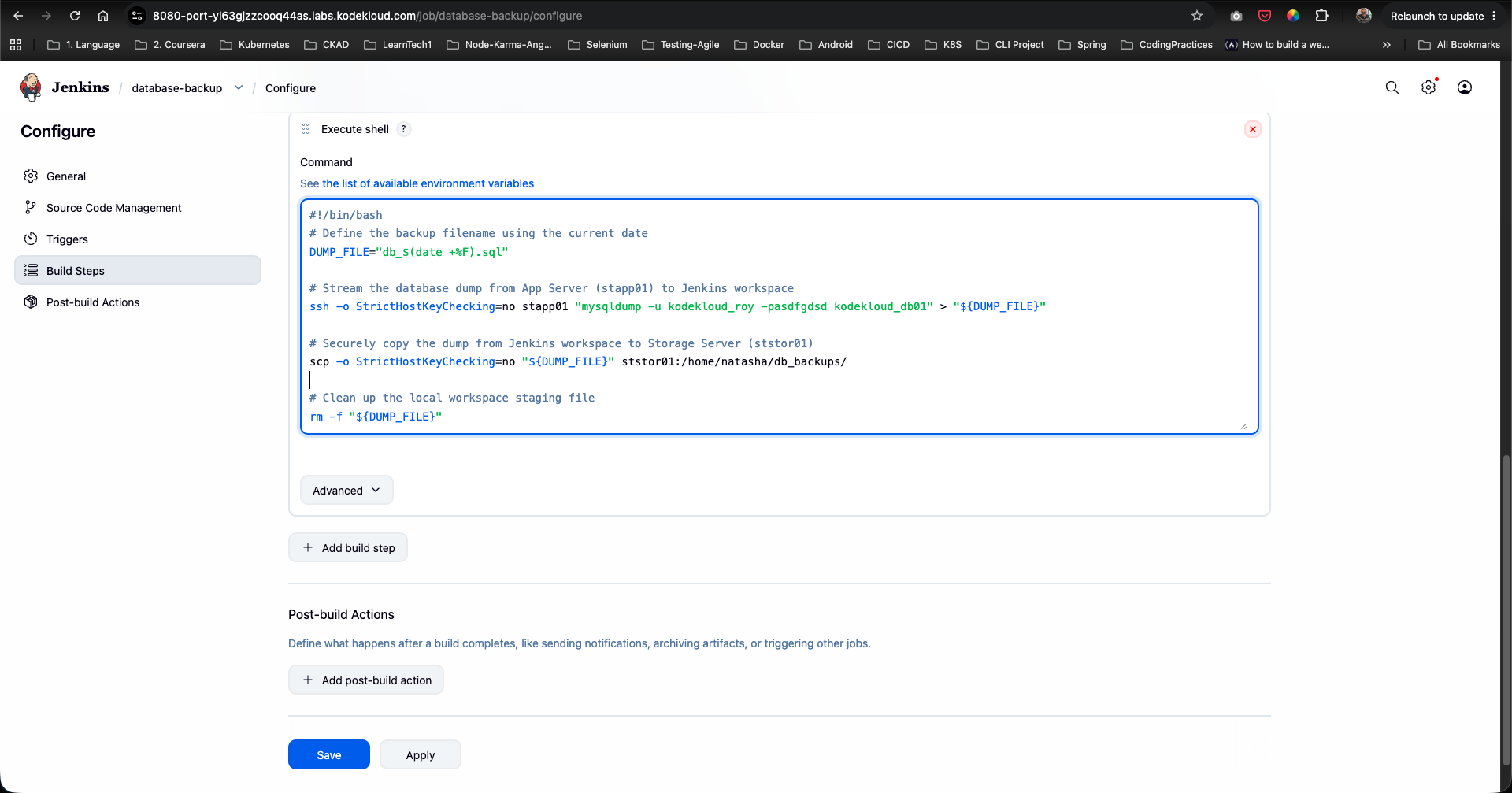
Execute Shell Script Configuration
#!/bin/bash
# Define the backup filename using the current date
DUMP_FILE="db_$(date +%F).sql"

# Stream the database dump from App Server (stapp01) to Jenkins workspace
ssh -o StrictHostKeyChecking=no stapp01 "mysqldump -u kodekloud_roy -pasdfgdsd kodekloud_db01" > "${DUMP_FILE}"

# Securely copy the dump from Jenkins workspace to Storage Server (ststor01)
scp -o StrictHostKeyChecking=no "${DUMP_FILE}" ststor01:/home/natasha/db_backups/

# Clean up the local workspace staging file
rm -f "${DUMP_FILE}"
Step-by-Step Walkthrough
Step 0: Pre-configure SSH Keys and Destination Directories
Before running the Jenkins build, verify passwordless SSH keys and directory structure across the servers:
- Verify or create destination directory on
ststor01:ssh natasha@ststor01 "mkdir -p /home/natasha/db_backups/" - Verify Passwordless SSH key authentication from Jenkins controller to
stapp01andststor01:ssh -o StrictHostKeyChecking=no stapp01 "hostname" ssh -o StrictHostKeyChecking=no ststor01 "hostname"
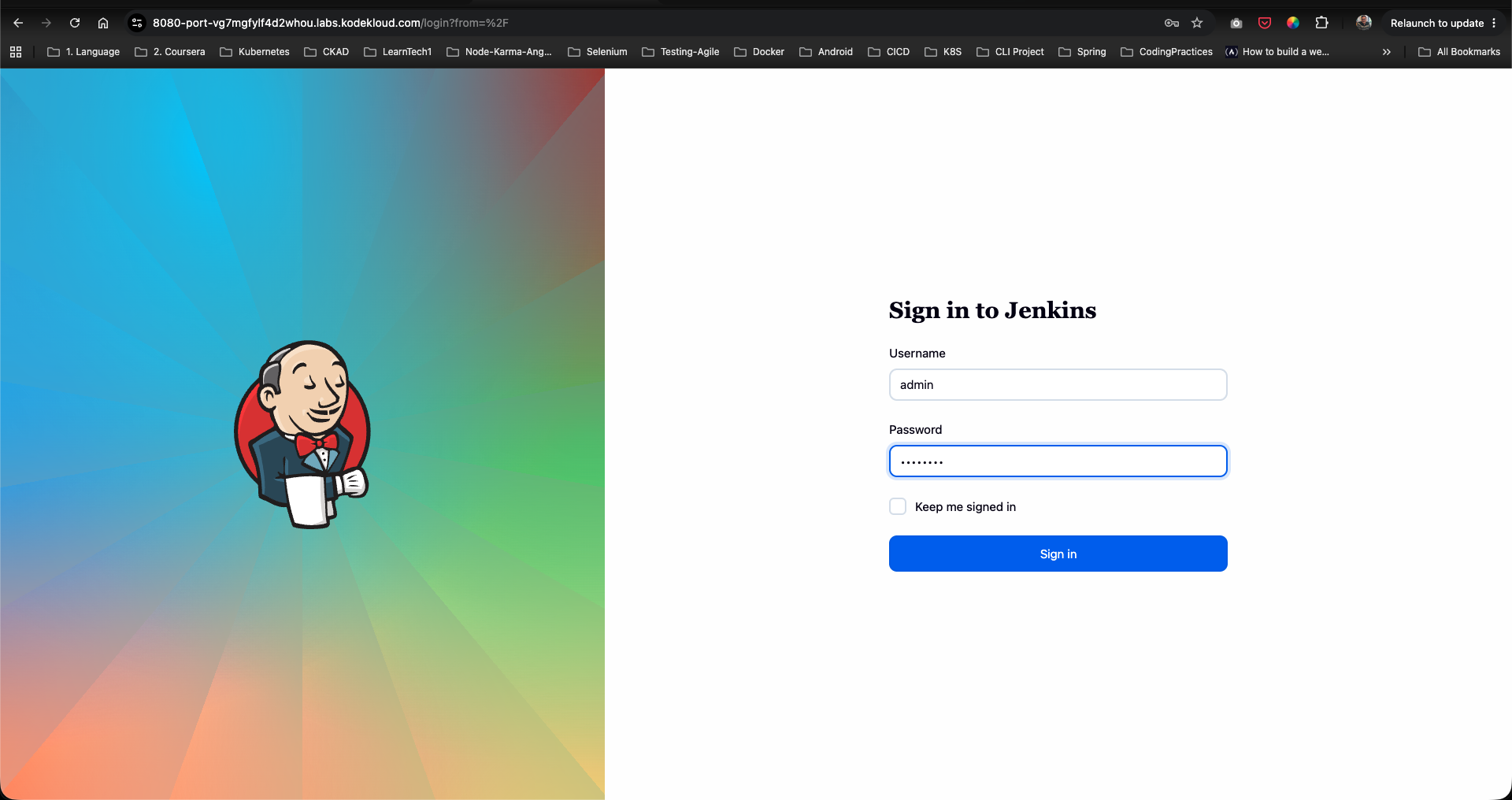
Step 1: Log in to the Jenkins Console
- Open your web browser and navigate to the Jenkins login page.
- Sign in using the administrative credentials:
- Username:
admin - Password:
Adm!n321
- Username:
Step 2: Access the Dashboard
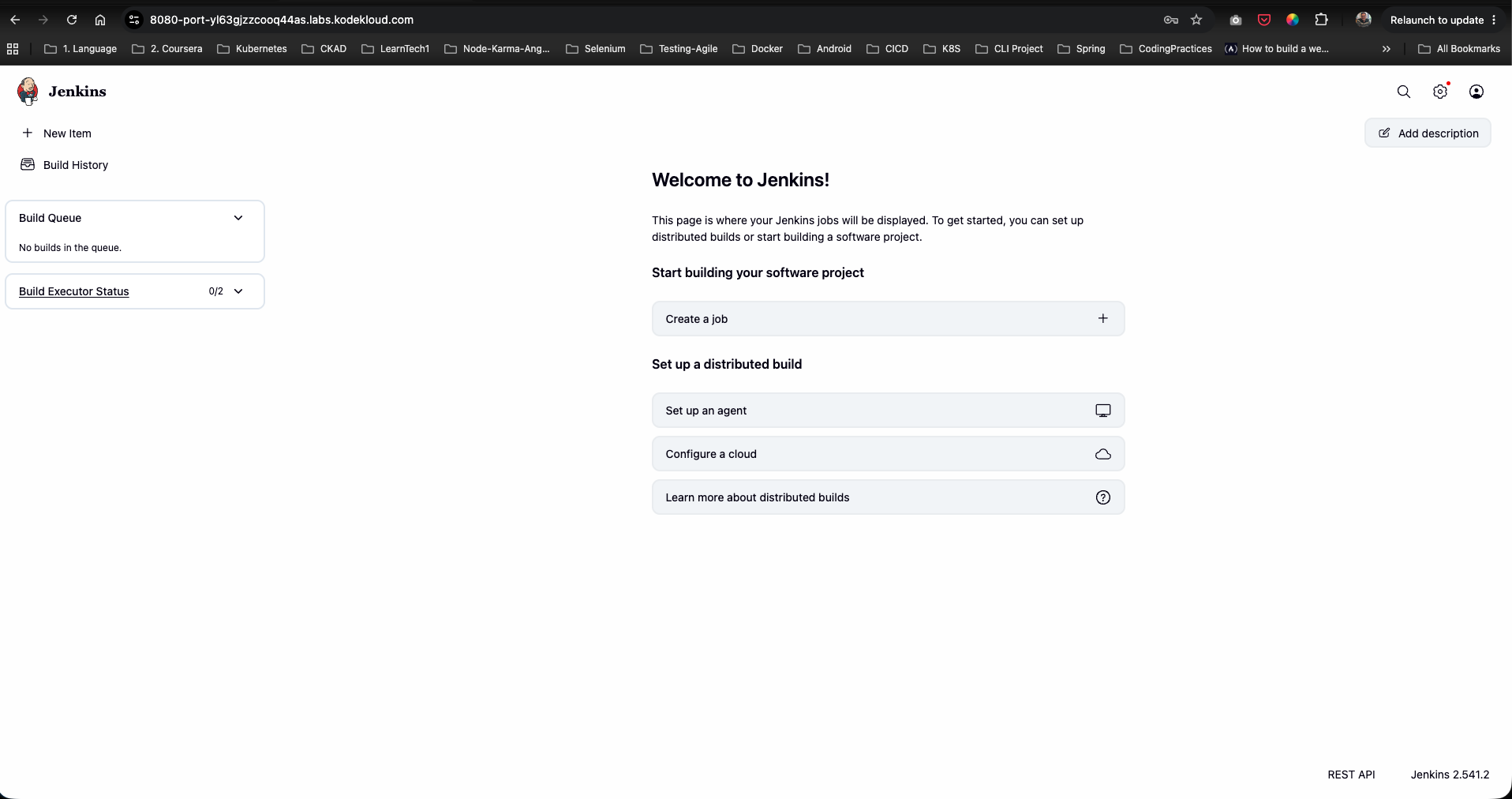
Upon signing in, verify access to the Jenkins welcome landing page:
Step 3: Create the database-backup Freestyle Project
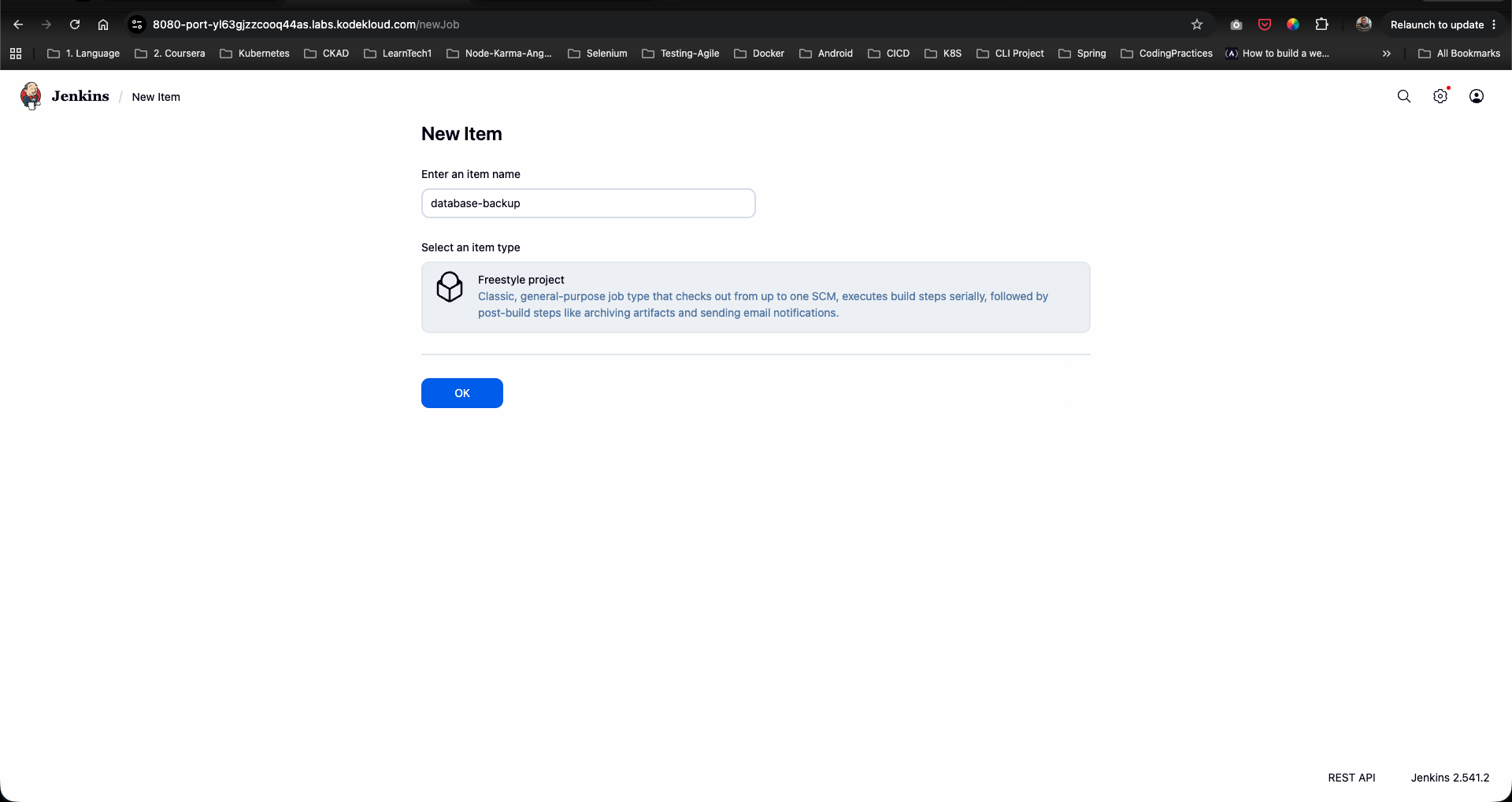
- Click New Item on the left menu (or Create a job).
- Enter
database-backupas the item name. - Select Freestyle project.
- Click OK.
Step 4: Configure Periodic Cron Schedule
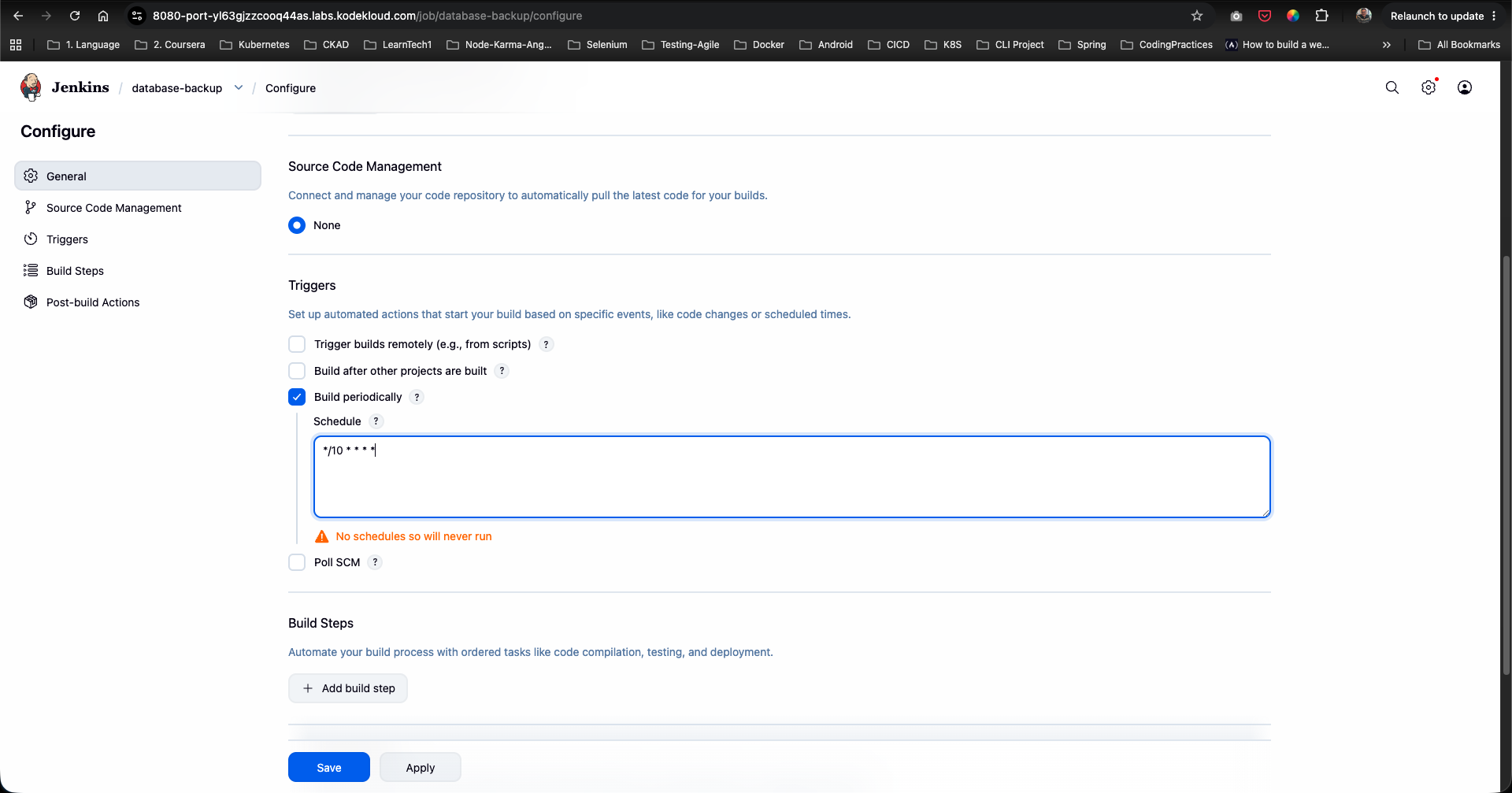
- In the job configuration page, navigate to the Triggers tab.
- Check the box for Build periodically.
- In the Schedule text field, enter the exact schedule format:
*/10 * * * *
Step 5: Configure Execute Shell Build Step
- Scroll down to the Build Steps section.
- Click Add build step and choose Execute shell.
- In the Command text area, paste the bash script:
#!/bin/bash # Define the backup filename using the current date DUMP_FILE="db_$(date +%F).sql" # Stream the database dump from App Server (stapp01) to Jenkins workspace ssh -o StrictHostKeyChecking=no stapp01 "mysqldump -u kodekloud_roy -pasdfgdsd kodekloud_db01" > "${DUMP_FILE}" # Securely copy the dump from Jenkins workspace to Storage Server (ststor01) scp -o StrictHostKeyChecking=no "${DUMP_FILE}" ststor01:/home/natasha/db_backups/ # Clean up the local workspace staging file rm -f "${DUMP_FILE}" - Click Save.
Step 6: Verify Console Output
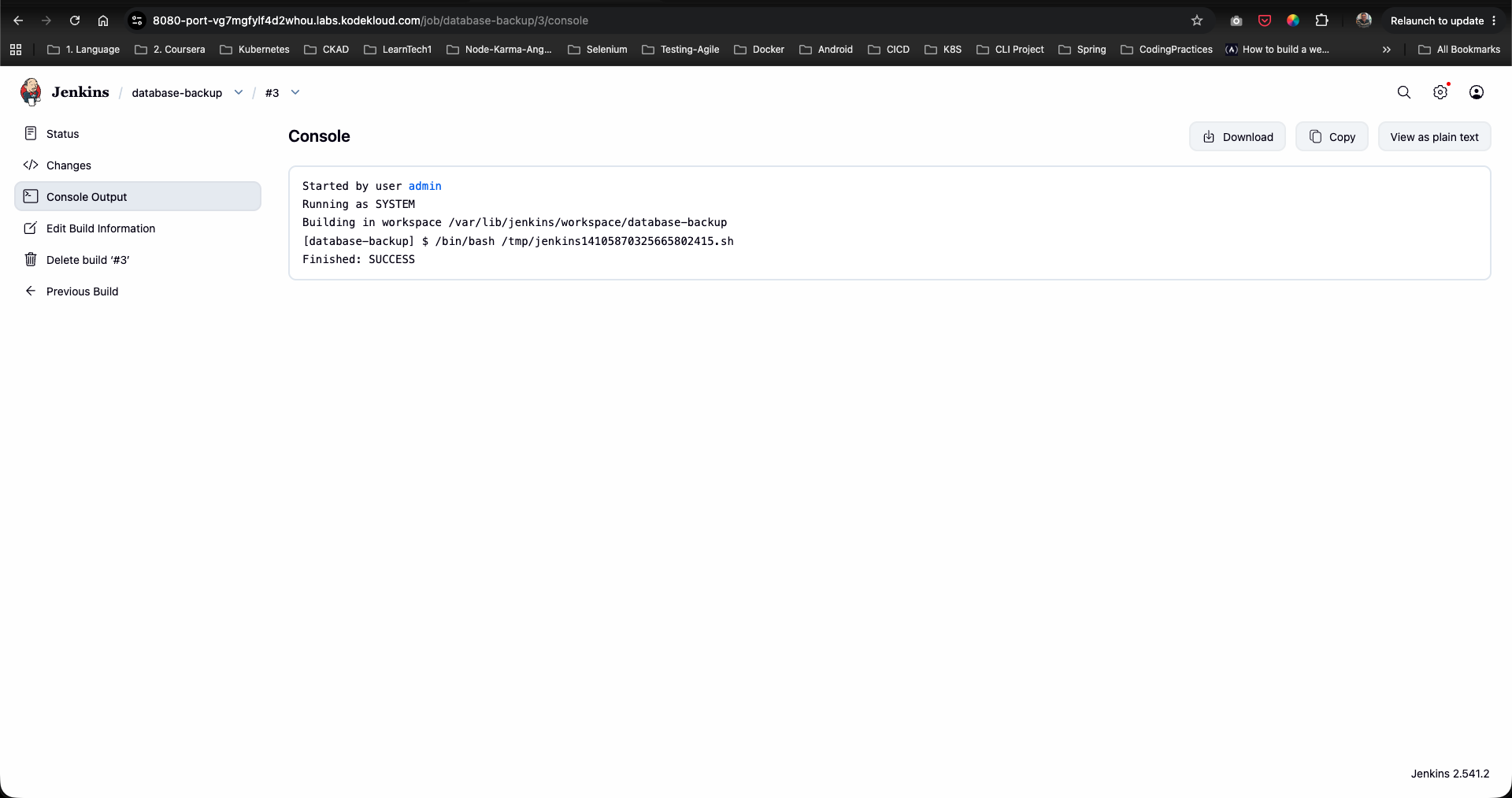
- Click Build Now to trigger an immediate build.
- Select the latest build number from Build History and click Console Output.
- Confirm that the shell script executed cleanly and returned
Finished: SUCCESS:
Step 7: Verify Backup File Existence on Storage Server
- Open a terminal session and SSH into the Storage Server (
ststor01):ssh natasha@ststor01 cd /home/natasha/db_backups/ ls -la - Confirm the presence of the backup file matching the current date format (
db_2026-07-28.sql):

The Jenkins database backup pipeline is now fully operational and configured to run automatically every 10 minutes!